Passbolt
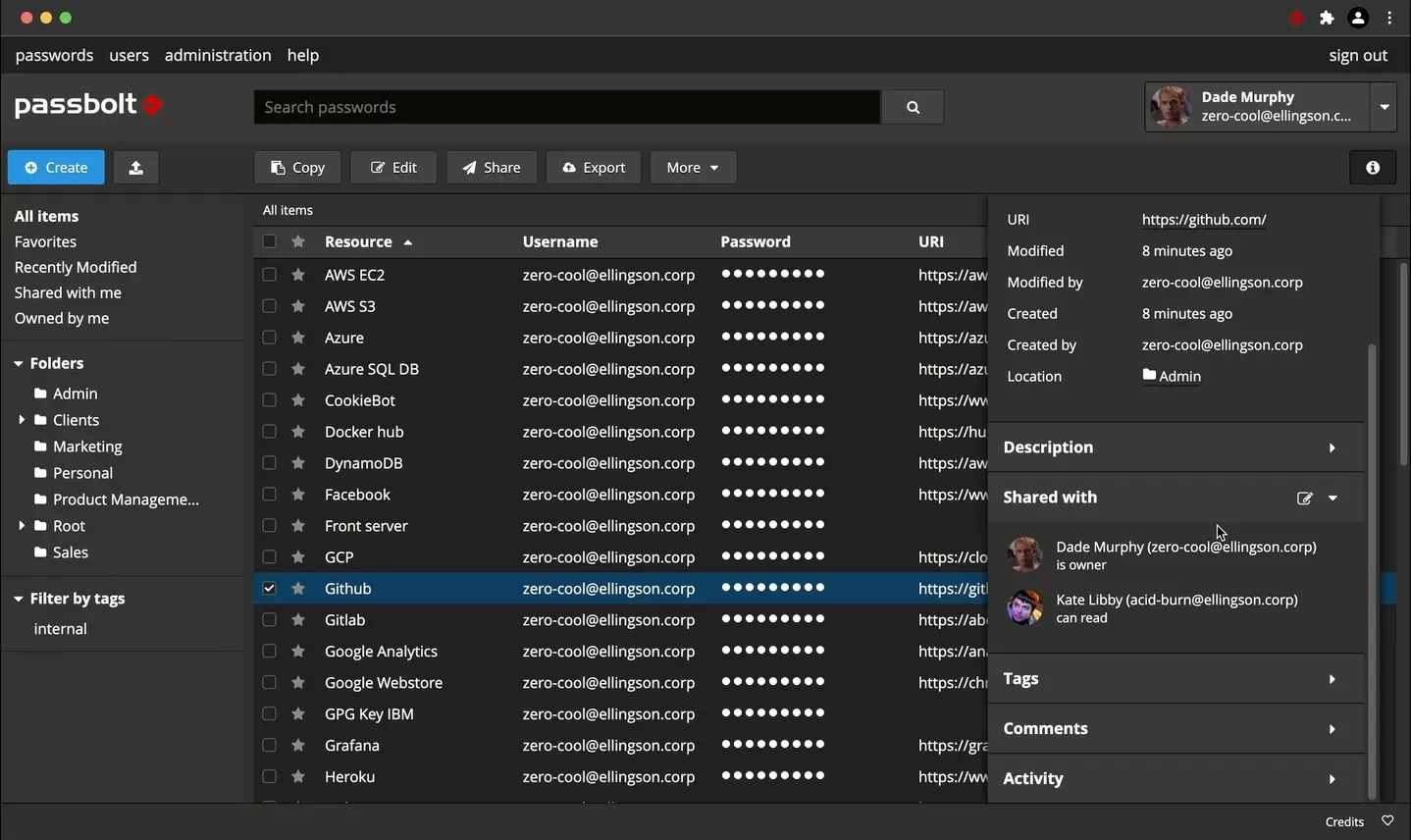
Passbolt is Self-Hosted Password Manager, used for Team Password Management Key Management . Keep full ownership of your data. With passbolt pro's ability to self host it's the perfect sidekick for those who value privacy or more control.
Prepare
When referring to this document to use Passbolt, please read and ensure the following points:
-
Login to Websoft9 Console and find or install Passbolt:
- Go to My Apps listing applications
- Go to App Store installing target application
-
This application is installed by Websoft9 console.
-
The purpose of this application complies with the AGPL-3.0 open source license agreement.
-
Configure the domain name or server security group opens external network ports for application access.
Getting Started
Initial setup
-
Once you have completed the installation of Passbolt in the Websoft9 Console, retrieve the application information from My Apps.
- Get the access URL in the Access tab.
- Get the App Id in the Overview.
-
Run the following command to create an admin account and get the initial installation URL suffix:
docker exec <App Id> su -m -c "bin/cake passbolt register_user -u "YOUR_EMAIL" -f "YOUR_NAME" -l "YOUR_LASTNAME" -r admin" -s /bin/sh www-data -
Use your local browser to visit
http://URL/installation URL suffixand go to the initialization wizard to complete it in order:- Install the Passbolt browser plugin
- Set the administrator password
-
After completing the initialization, log in to the Passbolt console and set up SMTP before inviting other users to enroll via email.
Configuration options
- Multilingual (×): not support Chinese
- SMTP: Console administration > Email server